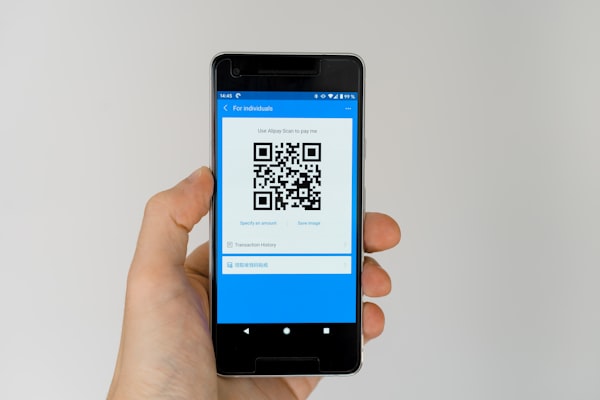
QR codes are everywhere - on menus, business cards, posters, product packaging, and even gravestones. But if you've never created one yourself, the process can feel mysterious. How do those black-and-white squares actually get made? Do you need design software? Do you need to know how to code?
The answer is no on both counts. Creating a QR code is surprisingly simple, and you can do it in under five minutes with the right tools. In this guide, we'll walk through every step of how to create a QR code, from choosing the right type for your use case to downloading a print-ready file. By the end, you'll be able to generate professional QR codes for any purpose.
What You'll Need to Get Started
Before we dive in, here's what you need:
- A QR code generator - We recommend URSAQR, a free QR code generator that runs entirely in your browser. No sign-up, no data uploads, no limits.
- The data you want to encode - A URL, text, email address, or whatever you want the QR code to contain.
- A logo (optional) - If you want to brand your QR code, have your logo file ready in PNG or SVG format.
- About 5 minutes of your time - That's all it takes to create a polished, customized QR code.
That's it. No Adobe subscription. No coding knowledge. No design experience. Just a browser and a few clicks.
Step 1: Choose Your QR Code Type
The first step in learning how to create a QR code is deciding what kind of data you want to encode. Different use cases call for different QR code types, and choosing the right one upfront saves you headaches later.
Here are the most common QR code types and what each is best for:
URL
The most popular type. A URL QR code opens a website in the user's browser when scanned. Use this for landing pages, product pages, blog posts, social media profiles, or any web destination. If you're running a marketing campaign, this is almost certainly the type you need.
Text
Plain text QR codes simply display a message when scanned. No link is opened, no action is triggered beyond showing the text. This is useful for informational signs, simple instructions, or indoor spaces where internet connectivity is unreliable.
An email QR code pre-fills the recipient's email address, subject line, and body. When scanned, it opens the user's default email app with everything already filled in. Great for business cards, customer support touchpoints, or event RSVPs.
Phone
Encodes a phone number that, when scanned, prompts the device to dial that number. Ideal for service businesses, trade show booths, or real estate signs.
SMS
Similar to phone, but opens the messaging app with a pre-filled number and message body. Excellent for appointment reminders, promotions, or two-factor authentication flows.
WiFi
This QR code type stores your network SSID, password, and encryption type. When scanned on iOS or Android, it prompts the user to join the network instantly. No more handing out a crumpled sticky note with your Wi-Fi password.
vCard
A vCard QR code encodes contact information (name, phone, email, company, address, website) into a downloadable contact file. When scanned, the phone offers to save the contact. This is a must-have for networking events, business cards, and conference badges.
Social Media Links
Some QR code generators like URSAQR offer a dedicated social media QR code type that bundles multiple platform links (Instagram, LinkedIn, Twitter, YouTube, TikTok) into a single landing page. Perfect for influencers, creators, and personal branding.
When you use a QR code generator, you'll typically see these options presented as a menu or dropdown. Pick the one that matches your goal, and you're ready for the next step.
Step 2: Enter Your Data
Once you've selected your QR code type, it's time to enter the actual information. This is the most important step - a typo here means your QR code leads to a broken link or wrong destination.
Use URL Shorteners for Long Links
Long URLs are perfectly fine for QR codes from a technical standpoint - QR codes can hold up to 2,953 alphanumeric characters. However, shorter URLs produce simpler QR code patterns with fewer modules, which makes them easier to scan reliably. Use a URL shortener like bit.ly or your own branded short domain to keep links clean. A shorter URL also means your QR code will use a lower error correction level naturally, but you can override that (more on error correction later).
Double-Check Your URLs
This sounds obvious, but it's the most common mistake people make when they create QR codes. If you're encoding a URL, make sure it includes the full protocol (https://). Without it, some QR scanner online tools may misinterpret the data as plain text or try to open it incorrectly. Paste your URL into a browser tab and confirm it loads before you commit it to your QR code.
Formatting Text Correctly
If you're creating a text or email QR code, pay attention to formatting. For text, what you type is exactly what the user will see. For email, test the subject and body formatting - line breaks in the body field should be intentional. For SMS, keep messages brief and avoid special characters that might not translate well across carriers.
Most quality QR code generators, including URSAQR, let you preview the data before generating the code. Take advantage of this preview to confirm everything looks right.
Step 3: Customize the QR Code Design
Gone are the days when QR codes had to look like boring black-and-white grids. Modern QR code generators give you extensive design control so your QR code blends with your brand or campaign aesthetic.
Foreground & Background Colors
Instead of black on white, you can choose any foreground and background color combination. Keep contrast high - dark foreground on a light background works best. Light foreground on a light background will make your QR code difficult or impossible to scan. A safe rule is to use your brand's primary color as the foreground and white or a very light tint as the background.
Gradient Options
For a more polished look, some QR code generators support gradient fills. You can apply a linear or radial gradient to the modules (the individual squares that make up the code). This adds visual depth without sacrificing scan reliability, as long as the gradient maintains sufficient contrast from background to foreground.
Corner Styles
The three large squares at the corners of a QR code - called position markers or finder patterns - can be customized in shape. Instead of the default square markers, you can use rounded squares, circles, or even custom-drawn shapes. This is one of the easiest ways to make your QR code stand out while keeping it fully scannable.
Adding Shapes to Modules
The individual data modules (the small squares that make up the largest portion of the pattern) can also be customized. You can use circles, diamonds, rounded rectangles, or other shapes instead of plain squares. This dramatically changes the look of your QR code while preserving its scannability - modern QR scanner online tools and smartphone cameras handle these variations without issue.
URSAQR's QR code generator offers all of these customization options in an intuitive interface. You can see your changes in real time and iterate until the design matches your brand perfectly.
Step 4: Add a Logo (Optional)
Adding a logo to the center of your QR code makes it instantly recognizable as belonging to your brand. It also increases trust - people are more likely to scan a QR code that clearly shows a familiar company logo.
Why Logos Work - Error Correction
QR codes include error correction - redundant data that allows the code to still be read even if part of it is damaged or obscured. There are four error correction levels (L, M, Q, H). Level H can tolerate up to 30% damage. When you place a logo in the center, you're intentionally damaging about 15-20% of the code's area, but with error correction set to H or Q, the QR code remains perfectly scannable.
Recommended Logo Size (~30%)
As a rule of thumb, your logo should cover no more than 30% of the total QR code area. A logo that's too large will push the error correction past its tolerance and break scanability. Most QR code generators automatically resize your logo to a safe percentage, but if you're doing it manually, aim for roughly a quarter to a third of the code's width.
Placement
The logo should always be centered in the QR code. Avoid placing it near the edges where it could interfere with the position markers or the quiet zone. The center of the QR code contains the least critical structural data, making it the ideal location for a logo. URSAQR handles logo placement automatically - just upload your logo file, and the tool positions and sizes it correctly.
Use a PNG or SVG logo with a transparent background for the cleanest result. JPG logos with white backgrounds leave an ugly white box around your brand mark.
Step 5: Download and Test
You've chosen your type, entered your data, customized the design, and added a logo. Now it's time to export and verify.
PNG vs SVG vs JPG
Most QR code generators offer multiple download formats:
- PNG - Best for web use, social media, and digital documents. Supports transparent backgrounds. Use 300 DPI or higher for print.
- SVG - A vector format that scales infinitely without losing quality. Ideal for professional printing, signage, and large-format applications. Always choose SVG when possible for print projects.
- JPG - Useful for photographs or when file size is a constraint. Avoid JPG for QR codes if you need a transparent background or crisp edges.
Resolution Tips
For digital use (websites, emails, social media), 500x500 pixels is typically sufficient. For print, aim for at least 1000x1000 pixels at 300 DPI. A general rule: the viewing distance determines the minimum size. A QR code on a billboard needs to be much larger than one on a business card. When in doubt, go bigger - a larger QR code with generous quiet zone is easier to scan from any distance.
Always Test Before Printing
This is the golden rule of QR code creation. Before you print 1,000 flyers or install a permanent sign, test your QR code with multiple devices and apps. Use your phone's native camera, a third-party QR scanner online tool, and ideally a device with an older camera to check scan reliability. Hold the code at various angles and distances. Test in different lighting conditions.
A broken QR code in print is expensive and embarrassing. Five minutes of testing saves you from a costly reprint.
Pro Tips for Better QR Codes
Now that you know the basic workflow of how to create a QR code, here are some advanced tips that professionals use to maximize scan rates and reliability.
- High contrast - Always use dark foreground modules on a light background. The scanner reads the contrast between light and dark areas. Low contrast is the number one reason QR codes fail to scan.
- Quiet zone - Maintain a minimum quiet zone (the blank margin around the QR code) of at least four modules wide. No text, graphics, or design elements should enter this zone. A cramped quiet zone is a common mistake that makes QR codes harder to scan.
- Error correction level - For most use cases, level M (15% recovery) is sufficient. If you're adding a logo, use level H (30% recovery). For large-format print or codes on challenging surfaces, never go below level Q.
- Sizing for print - A general guideline is that a QR code should be at least 2 x 2 cm (0.8 x 0.8 inches) for print. For every additional meter of viewing distance, add roughly 1 cm to each side. A QR code viewed from 5 meters away should be at least 6 x 6 cm.
- Test on multiple devices - Don't just test on your phone. Test on an older model, a budget Android, and an iPhone with different screen sizes. If it works across the board, you're safe.
- Use dynamic QR codes when possible - If you use a dynamic QR code (available in URSAQR), you can change the destination URL even after the code is printed. This is invaluable for campaigns where links may need updating.
Conclusion
Learning how to create a QR code is a genuinely useful skill in 2026. Whether you're a small business owner adding a QR code to a flyer, a marketer running a campaign, or just someone who wants to share Wi-Fi credentials with guests, the process takes less than five minutes and requires zero design experience.
To recap the five steps: choose your QR code type, enter your data, customize the design, add a logo (optional but recommended), and download and test before printing. Following these steps ensures you create a professional, scannable QR code every time.
Ready to create your first QR code? URSAQR's free QR code generator lets you create, customize, and download QR codes instantly - no sign-up, no cost, no limits. Everything runs in your browser, so your data never touches a server.