What Is a WiFi QR Code?
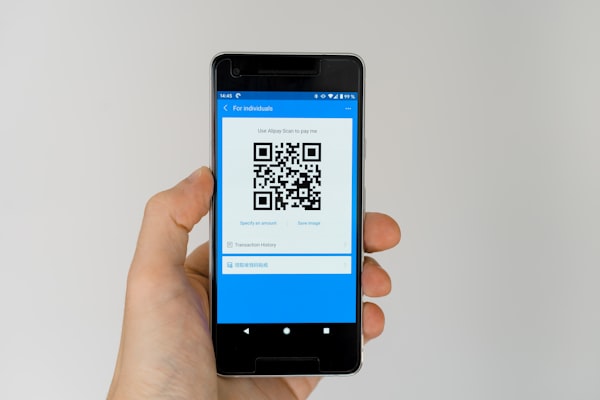
A WiFi QR code is a scannable square barcode that encodes the credentials needed to connect to a wireless network. Instead of reciting a long, jumbled password to every guest, you print or display the QR code and let their phone handle the rest.
Under the hood, a WiFi QR code stores the SSID (network name), the password, and the encryption type (WPA, WEP, or none). When a smartphone scans the code, the operating system reads this information and automatically joins the network. No typing, no typos, no case-sensitive frustrations.
The format used by modern WiFi QR codes follows the industry-standard WiFi Network Configuration Format, which is natively supported by both iOS and Android. This means you don't need a third-party app to scan a WiFi QR code - your phone's built-in camera app is enough.
There are three main encryption options you can store: WPA/WPA2/WPA3 (the most common and most secure), WEP (an older, less secure protocol), and Open (no encryption) for public guest networks. Choosing the correct encryption type is critical - if it doesn't match your router's configuration, the QR code won't work.
A WiFi QR code differs from other QR code types because it triggers a system-level action rather than simply opening a website. This makes it one of the most practical and frictionless uses of QR technology in daily life.
Why Use a WiFi QR Code?
Sharing a WiFi password verbally or by writing it on a slip of paper seems harmless. But in practice, it leads to repeated interruptions, misspelled passwords, and frustrated guests who can't figure out whether that "0" is a zero or the letter "O." A WiFi QR code eliminates all of that.
Convenience is the top reason. Guests scan once and connect instantly. The process takes about two seconds. For businesses, that translates into smoother onboarding for customers, better reviews, and fewer support requests aimed at the front desk.
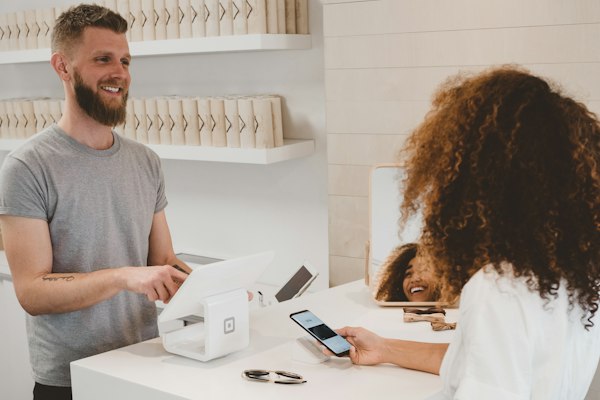
It reduces support requests. If you run a coffee shop, hotel, or co-working space, staff field the same question dozens of times a day: "What's the WiFi password?" A QR code placed on the counter or at each table turns that question into a self-service action. Your team stays focused on what matters.
It works across every device. iPhone and iPad users can scan WiFi QR codes directly from the Camera app. Android users can do the same using Google Lens or the built-in camera. Both operating systems have supported this feature since 2017 (iOS 11) and 2018 (Android 10), covering virtually every modern device.
It's more secure than posting the password publicly. Writing a password on a whiteboard or chalkboard means anyone walking past can see it. A QR code keeps the credentials machine-readable but not human-readable on the surface. While this isn't full security (more on that below), it adds a layer of discretion.
Where to Display a WiFi QR Code
WiFi QR codes are versatile enough to work in almost any environment where guests or customers need internet access. The placement matters - the code should be visible, well-lit, and easy to reach with a phone camera.
Coffee shops and cafes are among the most common locations. Place a tent card on each table or a small sign near the register. Customers can scan while waiting for their order, reducing congestion at the counter.
Hotel rooms and lobbies benefit enormously. Instead of printing WiFi instructions on a card that gets lost, embed the QR code on the room key sleeve, the in-room information binder, or a desk stand. Guests connect instantly without calling the front desk.
Offices and co-working spaces can place WiFi QR codes on conference room tables, breakroom bulletin boards, and reception desks. Visitors and new employees don't need to ask for the network credentials - they just scan and go.
Airbnb and vacation rental hosts should include a WiFi QR code in their welcome book, on the refrigerator, or as a framed print in the living room. It's a small touch that guests consistently mention in positive reviews. Many hosts report that it eliminates check-in questions entirely.
Waiting rooms, salons, and dental offices can offer WiFi as a courtesy to clients who may be waiting. A QR code on a sign or a brochure stand turns dead time into a more pleasant experience.
Home kitchens and living rooms are growing in popularity. A small laminated card on the fridge or a stylish QR code frame near the entryway ensures anyone in your home can connect without asking for the password.
How to Generate a WiFi QR Code
Creating a WiFi QR code is straightforward. You can do it entirely in your browser with no software installation required. Follow these steps:
Step 1: Choose the WiFi QR code type. Open the URSAQR generator and select the WiFi option from the list of QR code types. This tells the generator to use the WiFi network configuration format.
Step 2: Enter your network name (SSID). Type your WiFi network name exactly as it appears in your device's list of available networks. SSIDs are case-sensitive, so double-check for capital letters, spaces, and special characters. If your network name contains an emoji, make sure your generator supports Unicode characters.
Step 3: Select the encryption type. Choose the encryption protocol your router uses. Most modern routers use WPA2 or WPA3. If you're unsure, check your router's settings page or look at the security section of your phone's WiFi connection details. Selecting the wrong type will cause the scan to fail.
Step 4: Enter the password. Type your WiFi password carefully. Passwords are case-sensitive. If you have a hidden network (SSID not broadcast), you can also check the "Hidden" option so the QR code includes the necessary flag for connecting to non-broadcasting networks.
Step 5: Customize the design. Most generators let you change colors, add a logo in the center, choose a card template, and adjust the border style. Customization is optional but helps match your brand if you're displaying the code in a business setting.
Step 6: Generate and download. Click the generate button. Your WiFi QR code will appear instantly. Download it as PNG, JPG, or SVG depending on where you plan to use it. For printing, SVG is ideal because it scales without losing quality.
Step 7: Test before printing. Open your phone's camera, scan the QR code from your screen, and confirm that you can connect to the network. This step catches typos and encryption mismatches before you print dozens of copies.
Security Considerations
WiFi QR codes are convenient, but they introduce a few security trade-offs worth understanding. The most important thing to know: anyone who can scan the QR code can connect to your network.
If you display a WiFi QR code in a public area like a coffee shop or waiting room, assume that anyone with a smartphone can access the network. This is usually fine for a dedicated guest network with limited permissions. However, you should never put your main private network's credentials on a public QR code unless you have strong network segmentation in place.
Set up a guest network. Most modern routers allow you to create a separate guest WiFi network that isolates guests from your primary devices. Use the QR code for the guest network only. This way, visitors get internet access without reaching your computers, printers, or smart home devices.
Regenerate the code after changing your password. If your WiFi password changes - whether for security reasons or routine maintenance - you must generate a new QR code. The old code still works for anyone who has it, but it will fail for new scanners. Keep a digital copy of your QR code so you can reprint it quickly.
Dynamic vs printed QR codes. A static WiFi QR code has the credentials baked in permanently. A dynamic QR code redirects to a URL, but WiFi QR codes are almost always static because the connection action requires the data to be embedded directly. If you need to change credentials frequently, consider using a digital display (like a tablet or TV screen) instead of printed materials so you can update the displayed code easily.
Physical security matters. Someone could photograph or copy your printed WiFi QR code and use it later without your knowledge. Keep printed codes in visible, supervised areas rather than in places where someone could linger unnoticed. At home, treat your WiFi QR code like you would a written password - stored in a reasonable location, not broadcast to the street.
Best Practices
Follow these best practices to ensure your WiFi QR code works reliably and looks professional.
Use WPA2 or WPA3 encryption. WEP is outdated and insecure. If your router supports it, enable WPA2 or WPA3 before generating the QR code. The encryption type in the QR code must exactly match your router's setting, or the automatic connection will fail.
Confirm your SSID matches exactly. Network names are case-sensitive and space-sensitive. A common mistake is accidentally adding an extra space at the end of the SSID or password. Use a QR code scanner app that shows you the decoded content before connecting so you can verify the credentials.
Test the scan with multiple devices. Before printing in bulk, scan the code with both an iPhone and an Android phone. Different OS versions handle QR decoding slightly differently, and a test ensures broad compatibility. Also test from typical scanning distances - 10 to 30 cm for most cameras.
Print with sufficient contrast and size. For printed QR codes, use dark modules on a light background. The minimum recommended size is 2 x 2 cm (about 0.8 x 0.8 inches), but larger is better for table tents and wall signs. Keep a quiet zone (blank margin) of at least four modules around the code.
Laminate or use durable materials. A WiFi QR code in a high-traffic area gets touched, splashed, and handled regularly. Laminate printed codes or use acrylic stands to protect them from wear. A damaged QR code may not scan reliably.
Include a short instruction. Not everyone knows they can scan a QR code with their camera. Add a one-line note like "Scan with your phone camera to connect" near the code. This small nudge increases adoption significantly, especially among less tech-savvy users.
Match the design to your brand. If you're displaying the code in a business, use the generator's customization options to match your brand colors and add your logo. A well-designed QR code feels intentional and professional rather than like a sticky note afterthought.
Conclusion
WiFi QR codes are one of the most practical and underused features of QR technology. They eliminate a daily friction point - sharing a network password - and replace it with a one-second scan that works on every modern smartphone.
Whether you run a hotel, manage an office, host an Airbnb, or just want to save your family the trouble of typing a 20-character password every time someone visits, a WiFi QR code is a small change that makes a real difference. The setup takes under a minute, and the benefits compound every time someone walks through your door.
Ready to create your own? Use URSAQR's free QR code generator - no sign-up, no software, no limits. Choose the WiFi type, enter your network details, customize the look, and download your code in seconds.