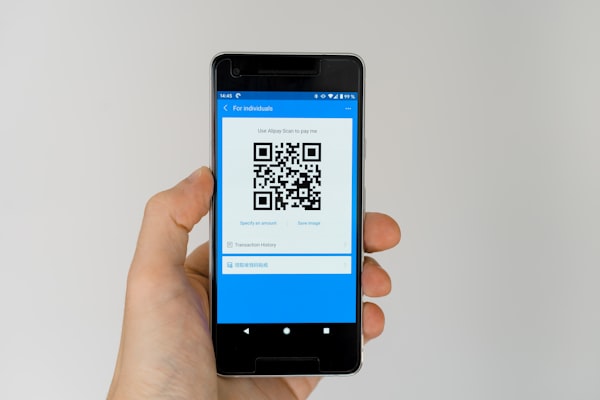
You designed a beautiful print campaign - business cards, flyers, posters, packaging - and embedded a QR code to drive traffic. Then the prints arrive, you scan, and… nothing. The code is too small, too blurry, too low-contrast, or cropped too tight. All that effort wasted because the QR code won't scan.
A QR code that doesn't scan is worse than no QR code at all. It frustrates your audience, breaks the user experience, and makes your brand look unprofessional. The good news? Printing scannable QR codes is straightforward once you understand the fundamentals. This guide covers everything you need - size, resolution, contrast, error correction, quiet zones, and testing - so your QR codes scan reliably every time.
Why Print Quality Matters
A QR code is a machine-readable optical label. Its scan reliability depends entirely on how clearly the scanner can distinguish between the dark modules and the light spaces between them. In digital form (on a screen), the contrast is perfect: pure black on pure white, sharp pixel edges, no bleed. Printed QR codes face a completely different set of challenges.
The five factors that determine print scanability are size, resolution, contrast, distortion, and material. If any one of these is wrong, the code may fail to scan. Size matters because a code that is too small for the scanning distance cannot be resolved by the camera. Resolution matters because low DPI printing blurs the sharp edges that scanners rely on. Contrast matters because scanners detect the difference between dark and light modules - if that difference is too subtle, the pattern becomes invisible to the reader.
Distortion is a common but often overlooked issue: printing on curved surfaces (bottles, cans, cylindrical packaging) can warp the QR code's square grid, confusing the scanner. The material itself also affects scanability - glossy paper creates glare, translucent materials reduce contrast, and rough textures blur fine details. Understanding these five factors is the first step to producing QR codes that scan flawlessly in the real world.
Minimum QR Code Size for Print
The most common printing mistake is making the QR code too small. While a QR code on a phone screen can be as tiny as 1 cm and still scan, printed codes need to be larger because the scanning distance is typically greater and the printed ink lacks the sharp glow of a digital display.
The rule of thumb: at least 2 cm x 2 cm (0.8 in x 0.8 in) for standard close-range scanning (flyers, brochures, business cards). This gives most smartphone cameras enough resolution to cleanly read a typical 25-33 module QR code. For banners, posters, and billboards where people scan from farther away, you need to scale up proportionally.
A useful formula: the QR code should be at least 1/10th of the scanning distance. If someone will scan from 1 meter away, the code should be at least 10 cm (4 in) on each side. From 5 meters (a billboard), make it at least 50 cm (20 in). This ratio accounts for both the camera's resolution and the typical focal distance of a smartphone lens. When in doubt, go bigger - a larger QR code never hurts scanability, but a too-small code guarantees failure.
Resolution Requirements (DPI)
Resolution in print is measured in DPI (dots per inch). The standard for high-quality print is 300 DPI. At 2 cm (roughly 0.8 inches), a QR code printed at 300 DPI needs to be at least 236 x 236 pixels in your source image. If you use a smaller source image and scale it up, the printer will interpolate the pixels, resulting in blurry, soft-edged modules that are harder for scanners to read.
The ideal format for print is vector output (SVG or EPS). Vector files describe the QR code as mathematical shapes, not pixels, so they scale to any size without losing sharpness. Vector output is the gold standard for professional printing because it guarantees crisp module edges at any dimension. If your QR code generator supports SVG export, always use it for print projects.
If vector is not available, use a high-resolution PNG (at least 600-1200 px at the target print size). Export your QR code at the exact pixel dimensions needed for your print layout, and avoid resizing the image in your design software. Resampling a low-resolution PNG to a larger size introduces anti-aliasing and blur, which degrades scan reliability. Always embed the highest resolution available, and if you must resize, scale down rather than up.
Contrast and Color
QR code scanners work by detecting the difference in reflectance between dark and light modules. Highest reliability comes from black modules on a white background. This classic combination delivers maximum contrast with zero ambiguity. Every step away from pure black and pure white introduces risk.
Dark blue or dark green on white can work well if the contrast is sufficient. Avoid red modules - many QR scanners (especially older ones) use red LEDs that illuminate the code, and red-on-white patterns become invisible under red light. Similarly, light colors on white backgrounds (yellow, light gray, pastels) lack enough contrast for reliable scanning.
Reverse QR codes (white or light modules on a dark background) can work if the contrast ratio is high enough. The rule: aim for at least 50% contrast ratio between the dark and light modules. You can test this by converting your design to grayscale - if the two shades are hard to distinguish, they won't scan. When printing on colored materials, print the QR code on a white label or add a white background box behind the code to ensure consistent contrast regardless of the surface color.
Error Correction Level
QR codes include Reed-Solomon error correction, which allows the scanner to read the code even when part of it is damaged, dirty, or obscured. There are four levels: L (7%), M (15%), Q (25%), and H (30%). The percentage indicates how much of the code can be damaged while remaining scannable.
For clean, professional print environments (business cards, brochures, magazines), level M (15%) is the recommended sweet spot. It provides a solid safety margin without making the code too dense. For small prints where you're fighting for space, level Q (25%) adds extra redundancy - useful if the code might be partially obscured or printed on a slightly uneven surface.
Avoid L (7%) for print unless the code is very large and the print conditions are perfect - even a small smudge or fold can break the scan. Level H (30%) offers the most protection and is ideal for extreme conditions: outdoor signage exposed to weather, codes printed on corrugated cardboard or textured surfaces, or any situation where the code may become dirty, scratched, or partially covered. The tradeoff is that higher error correction produces denser, more complex codes, so test a sample before committing to a design.
Quiet Zone (Margin)
The quiet zone is the blank margin of white space surrounding the QR code. It is not decorative - it is a structural requirement of the QR code specification. The quiet zone allows the scanner to distinguish the code from surrounding visual elements and determines where the code begins and ends.
The specification requires at least 4 module widths of white space on all four sides of the QR code. A module is one individual black or white square in the grid. If you scrimp on the quiet zone, the scanner may try to read adjacent text, logos, or background patterns as part of the QR code, causing decode failures.
This is arguably the most common printing mistake: designers crop the QR code too tight to save space or for aesthetic reasons. Never let the quiet zone be less than 4 modules wide. When in doubt, add extra padding - 6-8 modules of white space is even better and provides a greater margin of error. Also ensure that the quiet zone is pure white or the lightest color in your design - any tint, pattern, or texture in the quiet zone degrades scan reliability.
Testing Before Bulk Printing
Never send a new QR code design to bulk print without testing at least one physical proof. Even if everything looks correct in your design software, real-world printing conditions can introduce unexpected issues: ink bleed, paper stretch, color shifts, or registration misalignment.
Follow this testing protocol. Print one test copy on the exact same printer and paper stock you'll use for production. Check with multiple phones and apps - built-in camera scanners (iOS and Android), dedicated QR reader apps, and at least one older phone model. Test in different lighting conditions: bright sunlight, indoor office lighting, and dim ambient light. Glare on glossy paper, shadows from overhead lights, and low-light environments all affect scanability.
Test from the expected scanning distance. A QR code on a business card will be scanned from 15-30 cm (6-12 inches); a poster code from 1-3 meters (3-10 feet). Walk back to the maximum expected distance and verify the scan still works. Finally, take photos of any test failures - they help your print vendor troubleshoot and adjust. This five-minute test can save you thousands of dollars in wasted print runs.
Conclusion
Printing QR codes that scan reliably is not complicated, but it does require attention to a few critical details. Here is your quick checklist for every print project:
- Minimum 2 cm (0.8 in) for close-range scanning; scale up for distance (1/10th rule)
- 300 DPI minimum for raster images; use SVG/EPS vector when possible
- Maximum contrast: dark modules on a light background, avoid red, minimum 50% contrast ratio
- Error correction level M or Q; use H for outdoor or challenging surfaces
- At least 4 module widths of quiet zone on all sides - no exceptions
- Always test one proof on actual materials before bulk printing
Follow these guidelines and your QR codes will scan instantly, every time, no matter where they're printed. Ready to create a high-resolution QR code for your next print project? Use URSAQR's free generator to download your QR code as PNG or SVG and get perfect prints from the start.